Change custom approval workflows
Last updated 5 months ago
Summary
Approval Flow is Reah’s approval policy system. It controls which actions require approval, who can approve them, and when those actions can execute.
Approval Flow applies to money movement and to governance actions such as user management, ownership changes, policy updates, and entity settings.
How Approval Flow works
Approval Flow is made up of multiple policies (rules) that are evaluated in order.
Each rule contains:
- Condition: When the rule applies
- Approval roles: Who can approve
- Mode: How many approvals are required
- Timeout: How long the request stays valid
- Fallback: What happens if no rules match
When an action is requested:
- Reah checks rules from top to bottom.
- The first matching rule is selected.
- The request is routed to the configured approval roles.
- After the required approvals are collected, the action executes.
Approval categories
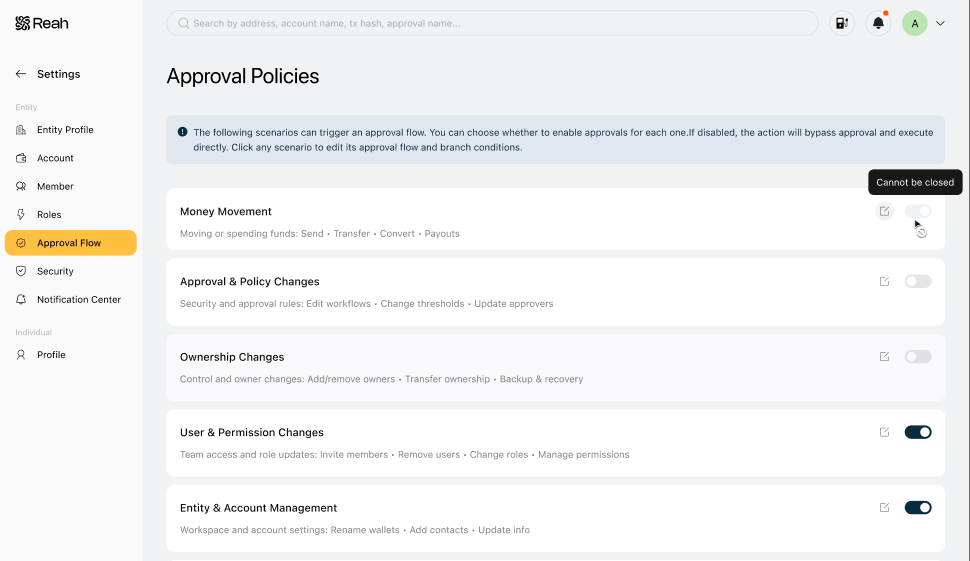
Go to Settings → Approval Flow to view all categories.
Money movement
Controls approvals for financial activity.
Includes:
- Crypto or fiat send
- Convert
- Internal account transfer
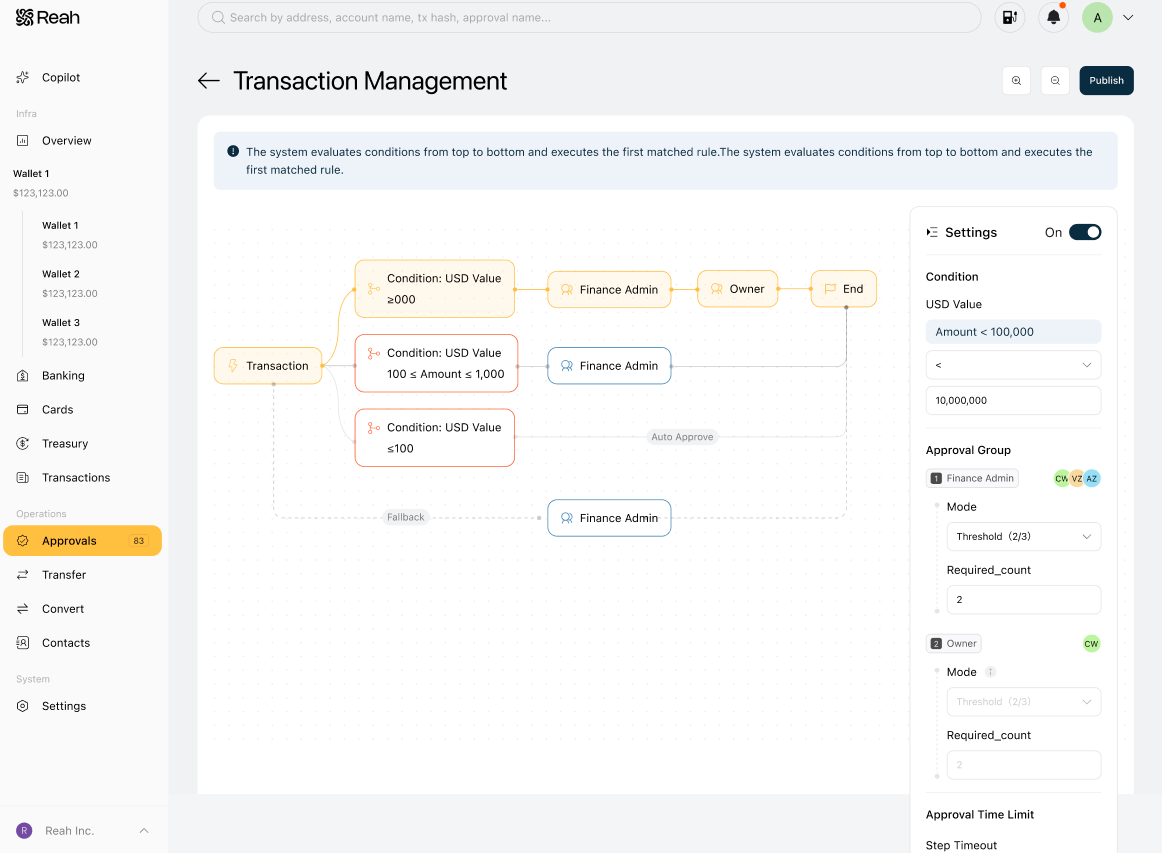
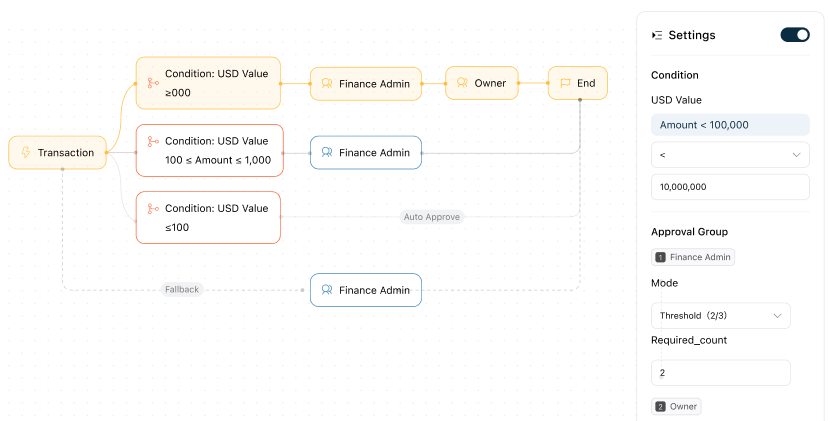
Money movement supports condition-based rules. For example:
- Small transfers can be auto-approved.
- Mid-size transfers can require Admin approval.
- Large transfers can require Admin and Owner approval.
To learn how to configure money movement approvals, see Set transaction approval rules.
Approval & policy changes
Controls changes to approval logic and governance rules.
Includes:
- Editing Approval Flow
- Updating approval thresholds
- Changing approval roles
Default behavior:
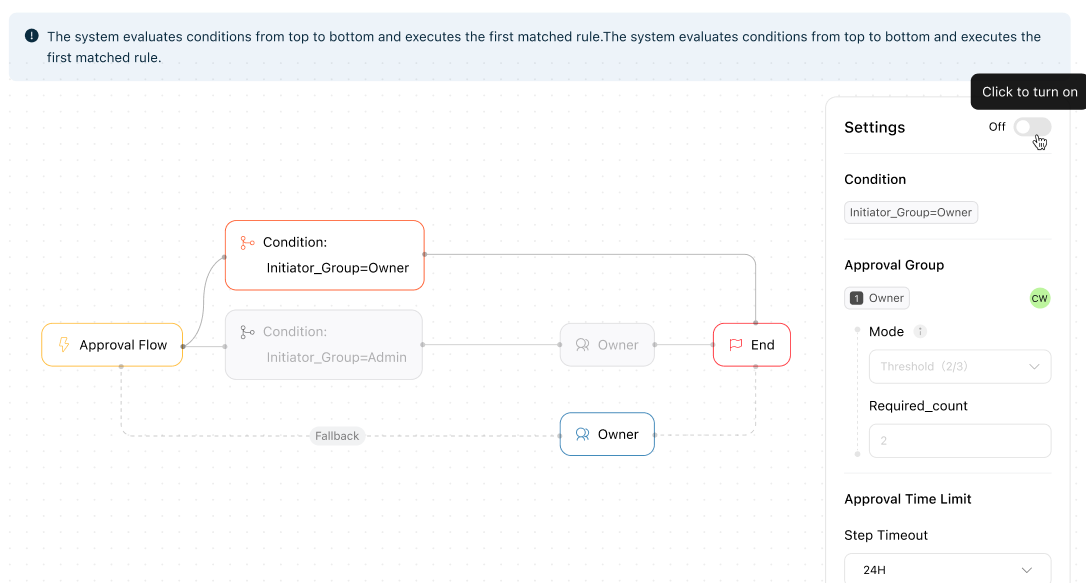
- Owner-initiated changes are auto-approved.
- Admin-initiated changes require Owner approval.
This category cannot be disabled.
Ownership changes
Controls sensitive ownership-related actions.
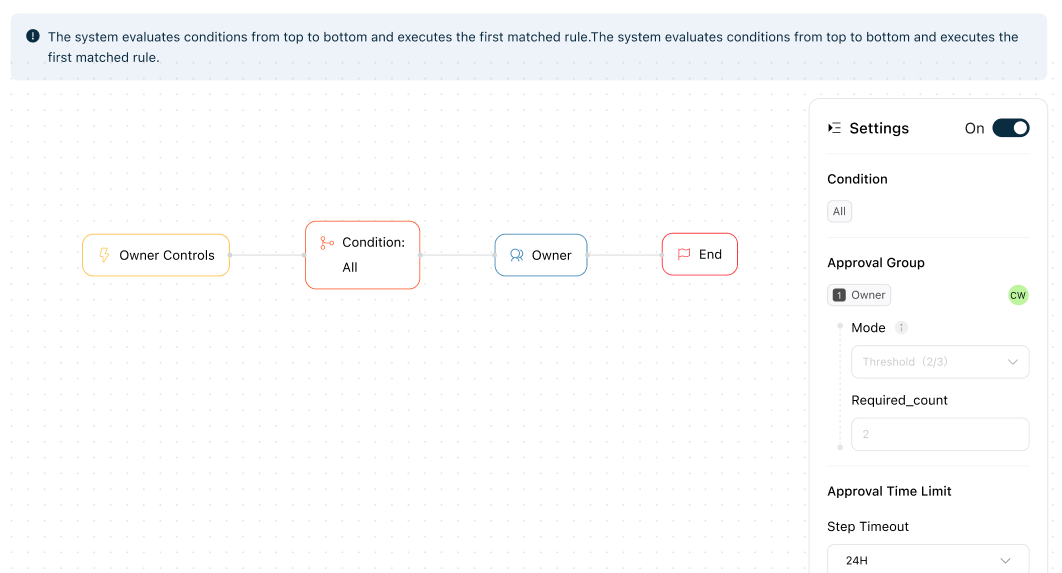
Includes:
- Adding or removing owners
- Ownership transfers
- Back up and recover entity
Default behavior:
- Only owners can initiate.
- Approval follows the configured ownership approval mode.
This category cannot be disabled.
User & permission changes
Controls team access and permission-related actions.
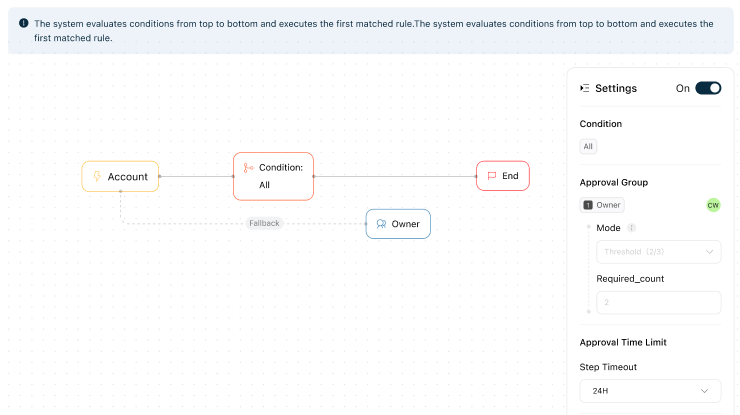
Includes:
- Adding or removing users
- Updating roles
Default behavior:
- Owner-initiated changes are auto-approved.
- Admin-initiated changes require Owner approval.
This category is disabled by default. When disabled:
- Owner and Admin actions execute immediately.
- Requests do not enter Approval Flow.
Entity & account management
Controls workspace and account-level settings.
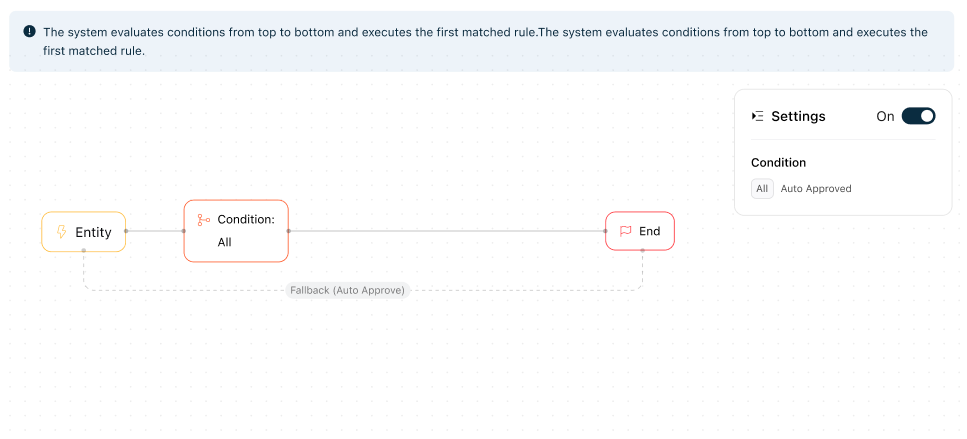
Includes:
- Updating entity information
- Renaming wallets
- Managing contacts
Default behavior:
- Owner and Admin actions are auto-approved.
This category is disabled by default. When disabled:
- Actions execute immediately.
- Requests do not enter Approval Flow.
Configure an approval flow
1. Open Approval Flow
- Click Settings in the left navigation.
- Go to Approval Flow.
- Select the category you want to configure.
2. Enable or disable approvals for a category
Each category includes a toggle to enable or disable approval.
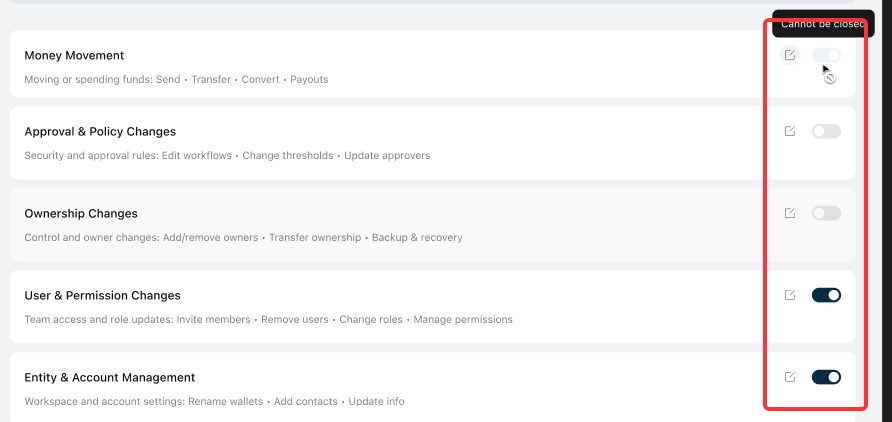
When approval is disabled:
- Actions execute immediately.
- Approval steps are skipped.
- Execution follows user permissions only.
These categories cannot be disabled:
- Money movement
- Approval & policy changes
- Ownership changes
3. Edit approval rules
Click any rule node in the approval canvas. A Settings panel opens on the right.
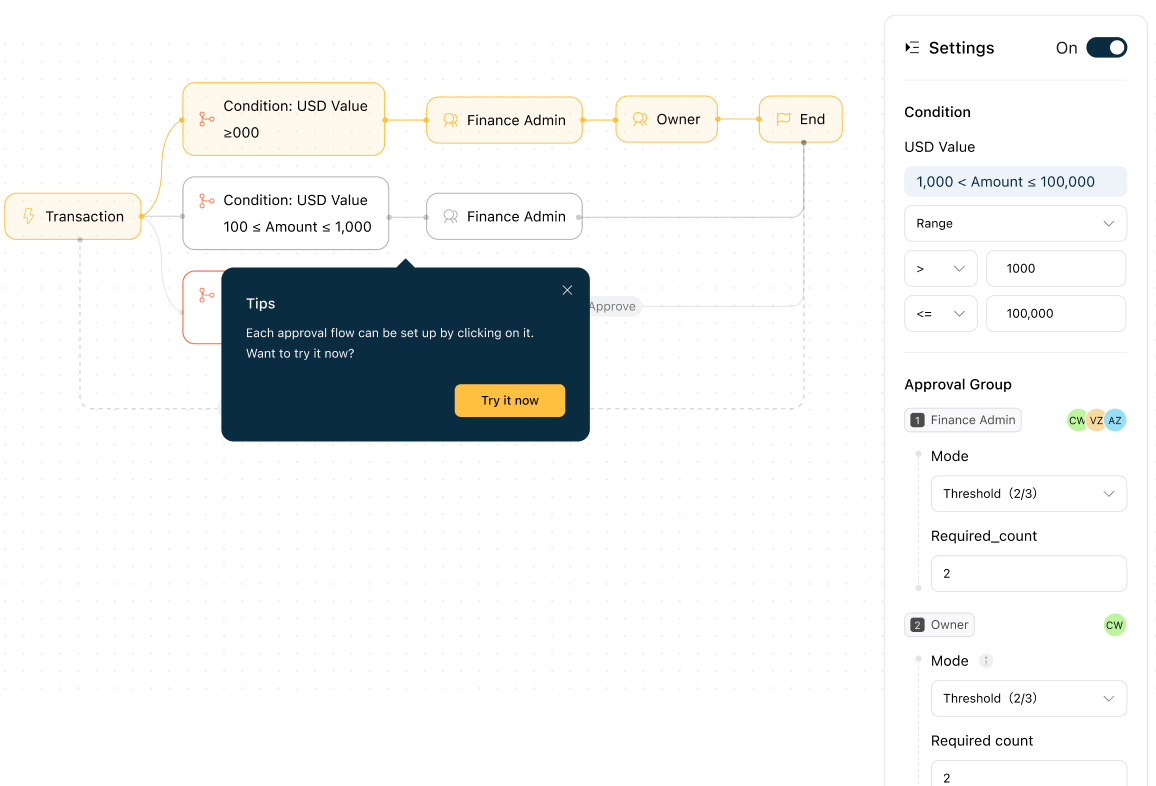
Condition
Conditions determine when a rule applies.
Only Money movement supports editable conditions.
Examples:
- Amount ≤ 100
- Amount 100 and 100,000
- Amount ≥ 100,000
Rules are evaluated in order.
Approval roles
Approval roles define who must approve an action.
You can configure both the roles and how many approvals are required.
Supported approval modes:
- Any one: Any one person in the role can approve
- Threshold: A minimum number of approvals is required
- Require all: Every assigned person must approve
Owner approval mode can only be modified by owners.
Approval behavior for initiators:
If the initiator belongs to a required approval role, their action does not automatically count toward that approval step.
For example, an Admin initiating a transfer still requires approval from another Admin. If no additional Admin approvers are available, approval escalates to an Owner.
Timeout
Sets how long an approval request remains active.
Maximum duration is 30 days. When the timeout is reached, the request is automatically rejected.
Disable rule
You can disable individual rules. When disabled:
- The system skips the rule
- The condition is not evaluated
4. Save and publish
Click Publish to apply the approval policy.
Publishing also requires completing the Approval & policy changes approval process.
Changes only take effect after publishing.
Default approval logic
Money movement
Initiators:
- Member
- Admin
- Owner
Default amount-based rules:
- ≤ 100: Auto-approved
- 100–100,000: Finance Admin approval
- ≥ 100,000: Finance Admin + Owner approval
Approval & policy changes
Initiators:
- Admin
- Owner
Default behavior:
- Owner-initiated: Auto-approved
- Admin-initiated: Owner approval
Ownership changes
Initiators:
- Owner
Default behavior:
- Follows your ownership approval configuration
User & permission changes
Initiators:
- Admin
- Owner
Default behavior:
- Owner-initiated: Auto-approved
- Admin-initiated: Owner approval
Disabled by default.
Entity & account management
Initiators:
- Admin
- Owner
Default behavior:
- Auto-approved
Disabled by default.
Best practices
- Require approvals for money movement, ownership changes, and permission changes.
- Keep low-risk actions lightweight when appropriate.
- Use multi-step approvals for high-value transfers.
- Review approval rules as your team structure changes.
- Test approval flows before rolling them out broadly.
What to do next
Still need help?
Reach out to Reah Support through the in-app chat or visit support.reah.com.
Was this helpful?
Still need help? Ask the team